Connect your TikTok Pixel to OnlyFans API Smart Links
Send configurable Smart Link click, subscription, purchase, and reply events to TikTok through its server-side Events API.
What is a TikTok Pixel?
A TikTok Pixel is TikTok's conversion tracking tool. It tells TikTok when someone takes an action, such as subscribing or purchasing, after clicking your TikTok ad.
Why connect it to Smart Links? OnlyFans doesn't support TikTok's pixel natively, and there's no way to install tracking code on OnlyFans pages. Smart Links can send the events you configure to TikTok's Events API without installing JavaScript on OnlyFans.
What you'll need
- An active OnlyFans API account with Smart Links enabled
- A TikTok Ads Manager account
- Your TikTok Pixel ID and an Events API Access Token (we'll generate both below)
Why this matters for TikTok
TikTok cannot observe subscriptions, tips, PPV purchases, or replies on OnlyFans through browser JavaScript. Smart Links sends configured events from OnlyFansAPI's servers instead. Delivery can still fail because of invalid credentials, rejected payloads, or platform availability; inspect the pixel's event logs in OnlyFansAPI.
This guide is the TikTok-specific setup. For how Smart Links work under the hood, including attribution rules, the conversion window, lifetime revenue attribution, and postback variables, see the Smart Links guide.
Step-by-step setup
Find your TikTok Pixel ID
In TikTok Ads Manager, open Tools in the top navigation and click Events (under Management).
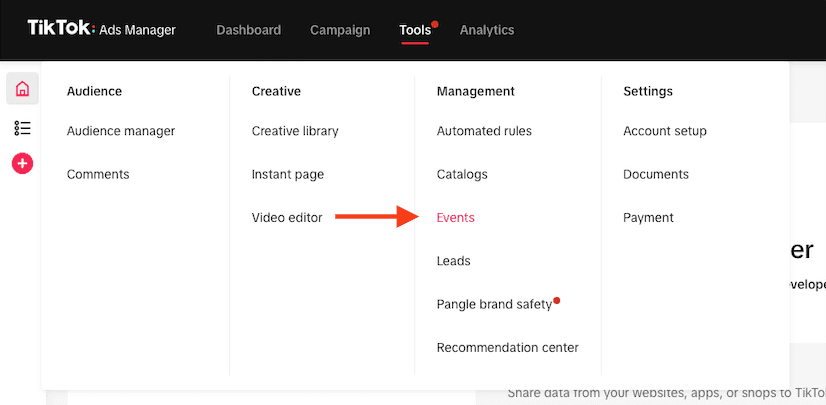
Depending on your account, TikTok may label this area Tools → Events or Assets → Events → Web Events. Both lead to the same Events Manager.
In Events Manager, click Get started, choose Web as your data source, and click Next.
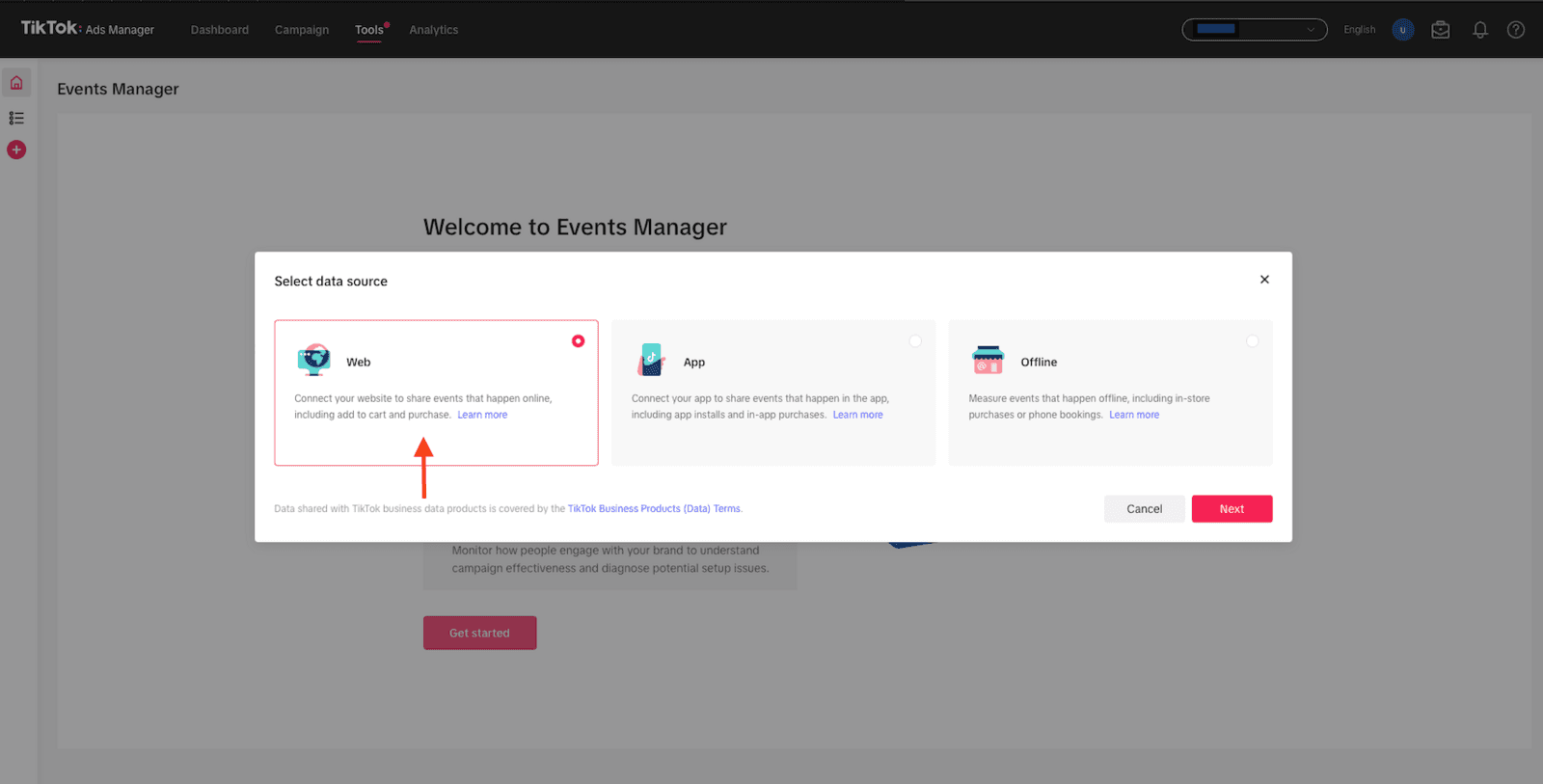
Give your pixel a name, select TikTok Pixel as the connection method, and continue. Once created, your pixel's ID is shown at the top of its Overview tab. Copy it.

Generate an Access Token
TikTok's server-side Events API needs an Access Token in addition to the Pixel ID. This is how Smart Links authenticate when sending events to TikTok.
On your pixel, open the Settings tab, scroll to Events API → Access Token Generation, and click Generate Access Token.
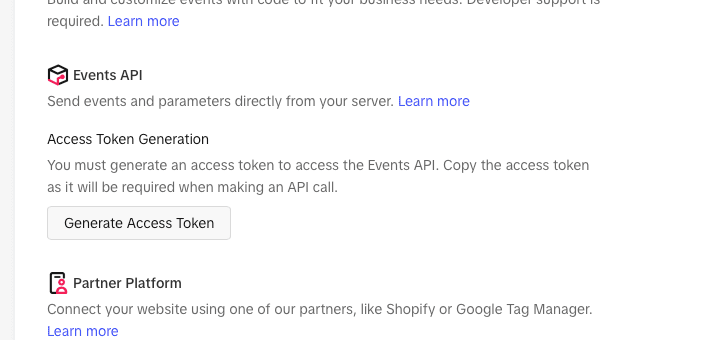
Copy the access token immediately and keep it safe. TikTok only shows it once. If you lose it, generate a new one.
Create or open a Smart Link
Log into your OnlyFans API Dashboard, open Smart Links → Links, and click Create Smart Link. To use an existing link, open its action menu and click Edit.
- Account: the OnlyFans account you're running ads for
- Smart Link Name: something descriptive, e.g. your TikTok campaign name
- Offer Type: Free Trial or Tracking Link
Add your TikTok pixel
Open Smart Links → Tracking Pixels and click Add Pixel. Then:
- Set Platform to TikTok Ads
- Paste your Pixel ID from Step 1
- Paste your Access Token from Step 2
- Choose All traffic sources, or create matching rules and scope the pixel to specific traffic sources
- Review the Event Configuration (see Events sent to TikTok below)
- Click Create
Attach the pixel to your Smart Link
Open Smart Links → Links, edit the Smart Link, and select the pixel in Tracking Pixels. You can attach more than one pixel to a link.
Send a test event
In TikTok Ads Manager, open your pixel's Test Events tab and copy the test event code.
Back in the OnlyFans API Dashboard, open the Send Test Event dialog on your pixel, pick an Event, paste the Test Event Code, and send it. Then check the Test Events tab in TikTok, where your event should appear within a few minutes.
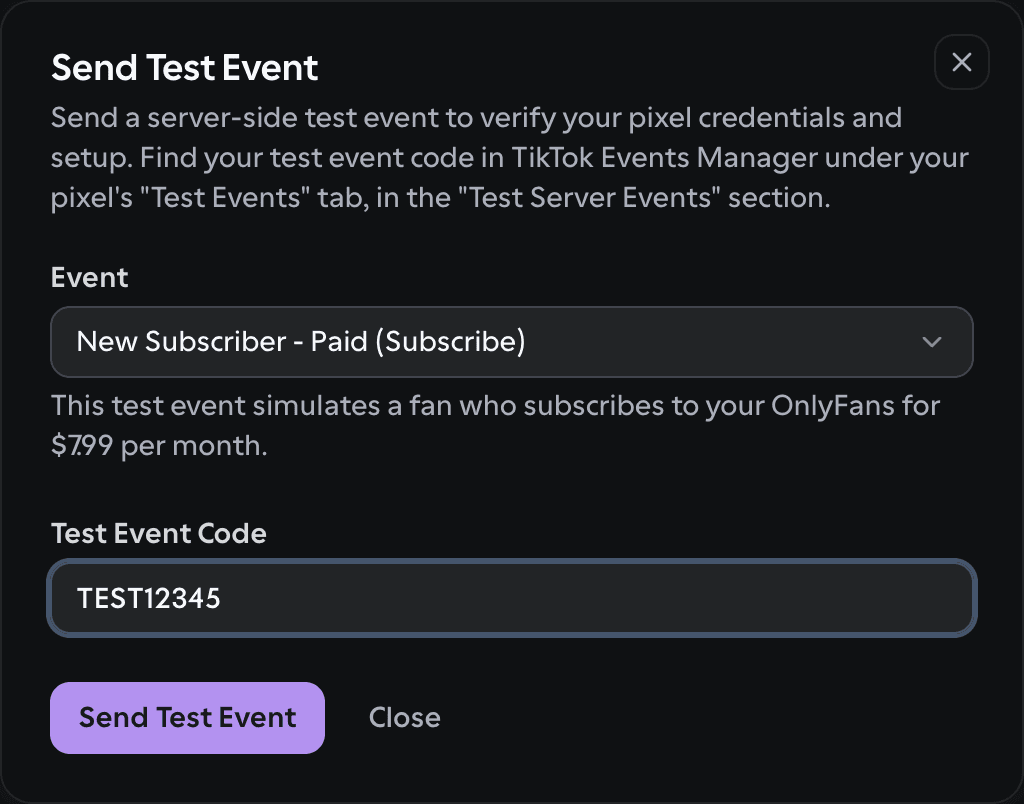
Events sent with a test event code don't affect your live data. They're only for verifying the connection. The Test Event Code is required for TikTok.
Use the Smart Link in your TikTok ad
In TikTok Ads Manager, set your ad's Destination URL to your Smart Link, appending TikTok's click-ID macro so conversions can be matched back to the click:
https://trk.of-traffic.com/go/YOUR_SMART_LINK_ID?ttclid=__CLICKID__Replace YOUR_SMART_LINK_ID with the ID from your Smart Links dashboard. TikTok replaces __CLICKID__ with the click's ttclid at click time, and Smart Links reads it from the ttclid parameter and includes it with each configured conversion event. Keep ?ttclid=__CLICKID__ on the URL, since that is the parameter Smart Links uses for TikTok attribution.
Verify conversions are flowing
Once your ads are live:
- Smart Links dashboard: you should see clicks, subscribers, and revenue
- TikTok Events Manager: conversion events appearing on your pixel
- TikTok Ads Manager: the campaign's Conversions column filling in
Events sent to TikTok
Smart Links can send the following events to your TikTok Pixel. Each one maps to a TikTok event in the Event Configuration section when you add the pixel. These are the defaults, and every event is configurable (map it to any TikTok standard event, a custom event, or turn it off).
| Smart Link event | When it fires | TikTok event (default) |
|---|---|---|
| Click | Fan clicks the Smart Link and is redirected to OnlyFans | ViewContent |
| New Subscriber | Fan subscribes through the Smart Link | Subscribe |
| First Purchase | First transaction other than the initial new-subscription payment. A rebill can be first. | CompletePayment |
| Repeat Purchase | Other transactions, including the initial new-subscription payment and transactions after First Purchase | CompletePayment |
| Message Received from Fan | Fan sends a message after converting | Not sent by default |
| Fan Sent 1st Message | Fan reaches their 1st inbound message | Not sent by default |
| Fan Sent 3+ Messages | Fan reaches their 3rd inbound message | Not sent by default |
For subscriber and purchase events, Smart Links also sends the conversion value and currency when available.
Troubleshooting
| Problem | Fix |
|---|---|
| No events showing in TikTok | Double-check you pasted both the Pixel ID and the Access Token. TikTok's server-side Events API needs both to authenticate. |
| Test event never appears | A Test Event Code is required for TikTok. Copy it from your pixel's Test Events tab and paste it into the Send Test Event dialog. Allow a few minutes. |
| Events arrive but the campaign isn't optimizing | Set your ad group's optimization goal to the matching conversion event (e.g. CompletePayment or Subscribe). |
| High traffic but low conversions | Confirm ttclid reaches the Smart Link, inspect the OnlyFansAPI pixel logs, and verify the intended conversion events are enabled. |
Connect your Meta Pixel to OnlyFans API Smart Links
Send configurable Smart Link click, subscription, purchase, and reply events to Meta through the server-side Conversions API.
Connect your Snapchat Pixel to OnlyFans API Smart Links
Send configurable Smart Link click, subscription, purchase, and reply events to Snapchat through its server-side Conversions API.