Channels
Add FansBot to Telegram, Slack, or Discord from your OnlyFansAPI dashboard.
A channel is a chat platform where your team talks to FansBot — a private bot in Telegram, Slack, or Discord. You can connect more than one; the same FansBot works across all of them.
Open the Channels tab
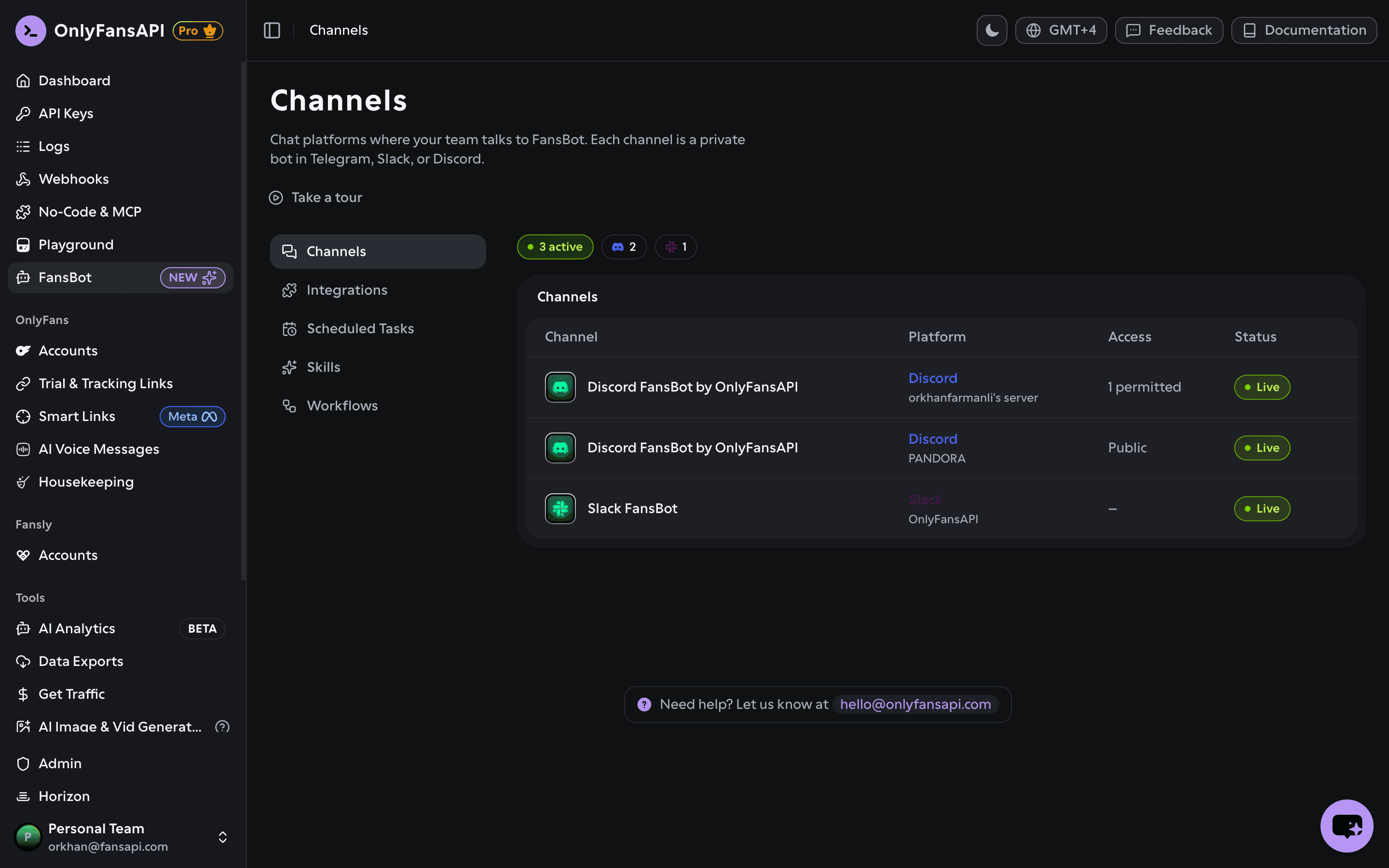
In your OnlyFansAPI dashboard, open FansBot in the sidebar. You land on the Channels tab, which lists every channel you've connected with its platform, access, and status.
Click Add channel and pick a platform.
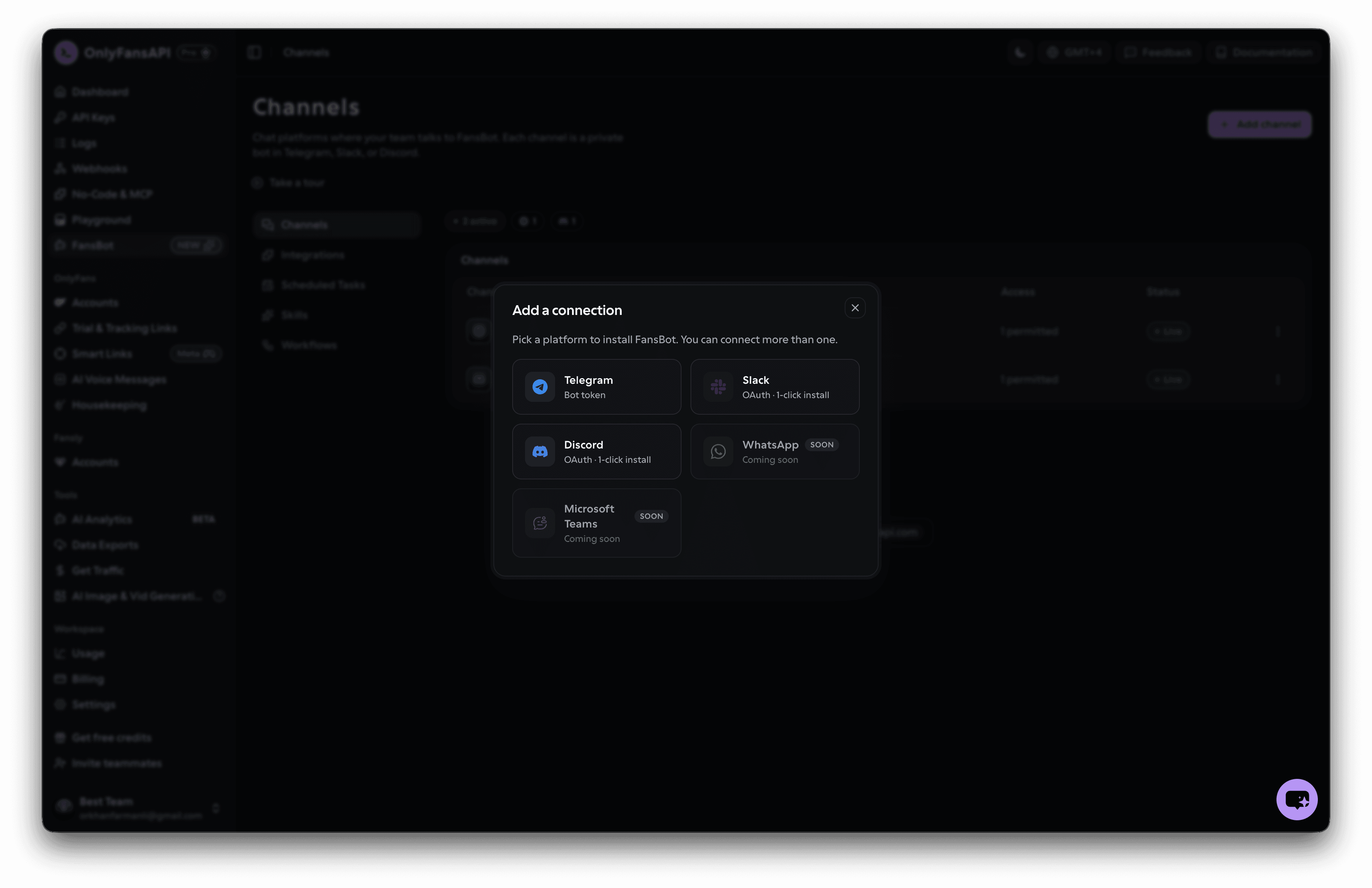
The steps differ slightly per platform:
Create a bot with @BotFather
In Telegram, open @BotFather, send /newbot, and follow the prompts. Copy the bot token it gives you — it looks like 1234567890:ABC-DEF....
Add the channel
In the platform picker, choose Telegram. Give the channel a name, paste your Telegram Bot Token, and save.
Find your User ID
A new Telegram bot won't talk to anyone yet. Open your bot, send it any message, and it replies that you're not allowed — along with your Telegram User ID. Copy that ID.
Allow yourself to chat
On the Channels tab, open the channel's Configure menu and paste your User ID into Permitted Users IDs (separate multiple IDs with commas). Save, then message the bot again and it'll respond.
Who can use the bot?
A Telegram channel is locked by default — only the User IDs you add to Permitted Users IDs can chat. Anyone else is shown their own User ID, so adding a teammate is just a copy-paste. Send /start any time to reset the conversation.
Choose Slack
In the platform picker, choose Slack, then click Add to Slack.
Authorize your workspace
You're redirected to Slack to authorize the OnlyFans API app and pick the workspace to install it into. Confirm, and you're returned to the dashboard with the workspace listed as a channel.
Start chatting
Send FansBot a direct message, or invite it to a channel and mention it.
Choose Discord
In the platform picker, choose Discord, then click Add to Discord.
Pick a server
You're redirected to Discord to add the OnlyFans API bot to a server you manage. Authorize it, and you're returned to the dashboard with the server listed as a channel.
Set who can use it
By default everyone in the server can chat with the bot. To restrict it, open the channel's Configure menu and turn off Allow everyone, then pick the specific permitted members (see below).
Start chatting
In a server channel, @mention the bot (for example, @FansBot) to talk to it — Discord doesn't support DMing the bot. Once it replies, you can keep chatting in that thread without mentioning it again.
Connected!
Your channel shows as Live on the Channels tab. Next, learn what to ask FansBot.
Manage a channel
On the Channels tab, open the menu at the end of any row. Telegram and Discord channels have a Configure option; Slack isn't configurable. Any channel can be removed with Delete. The Access column shows who can chat — Public when everyone is allowed, or a count like 3 permitted when you've restricted it.
Permitted users
- Telegram — Configure lists Permitted Users IDs, a comma-separated list of the Telegram User IDs allowed to chat. Anyone not on the list is shown their own ID so an admin can add them.
- Discord — Configure has an Allow everyone switch. Turn it off to reveal a Permitted members picker: search your server's members and select exactly who can chat. Members who join the server later won't have access until you add them.