Claude x OnlyFans & Fansly
Connect our MCP server to Claude as a custom connector and run your agency from any chat — Claude Desktop, Claude.ai, Claude Code, or the Anthropic API.
What this does
Claude can call OnlyFans API endpoints directly — send messages, pull stats, manage posts — through the OnlyFans MCP server. Add it once as a custom connector in Claude, then ask Claude to run OnlyFans tasks in plain English from any chat.
Works with Claude Desktop, Claude.ai (web), Claude Code, and the Anthropic API.
Custom connectors are currently in beta on Claude. All Claude plans support them (Free is capped at 1 custom connector; Pro/Max/Team/Enterprise allow multiple).
Prerequisites
- A Claude.ai account
- An OnlyFans API account
- At least one connected OnlyFans account
Step-by-step
1. Open Claude Settings → Customize → Connectors
In Claude.ai, click your profile → Settings → Customize → Connectors.
2. Add a custom connector
Click the + icon at the top of the Connectors list to open Add custom connector. Enter:
- Name —
OnlyFans MCP(or any label you prefer) - Remote MCP server URL:
https://app.onlyfansapi.com/mcp/onlyfans-mcpLeave Advanced settings closed, then click Add.
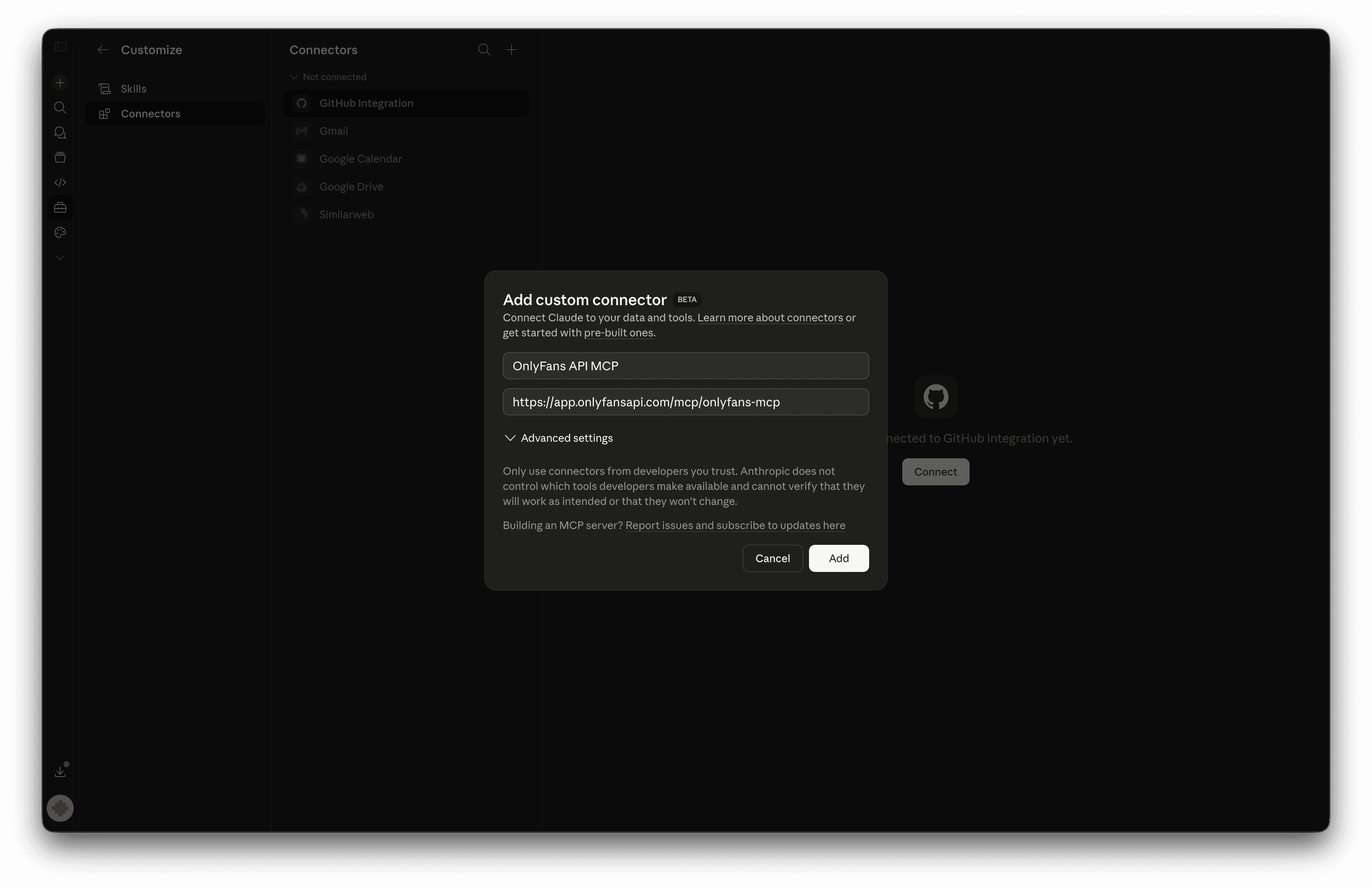
The Advanced settings (OAuth Client ID / Secret) stay empty. Our server handles OAuth automatically.
3. Click "Connect"
The new connector opens to a "You are not connected to OnlyFans MCP yet." screen. Click Connect to start the OAuth flow.
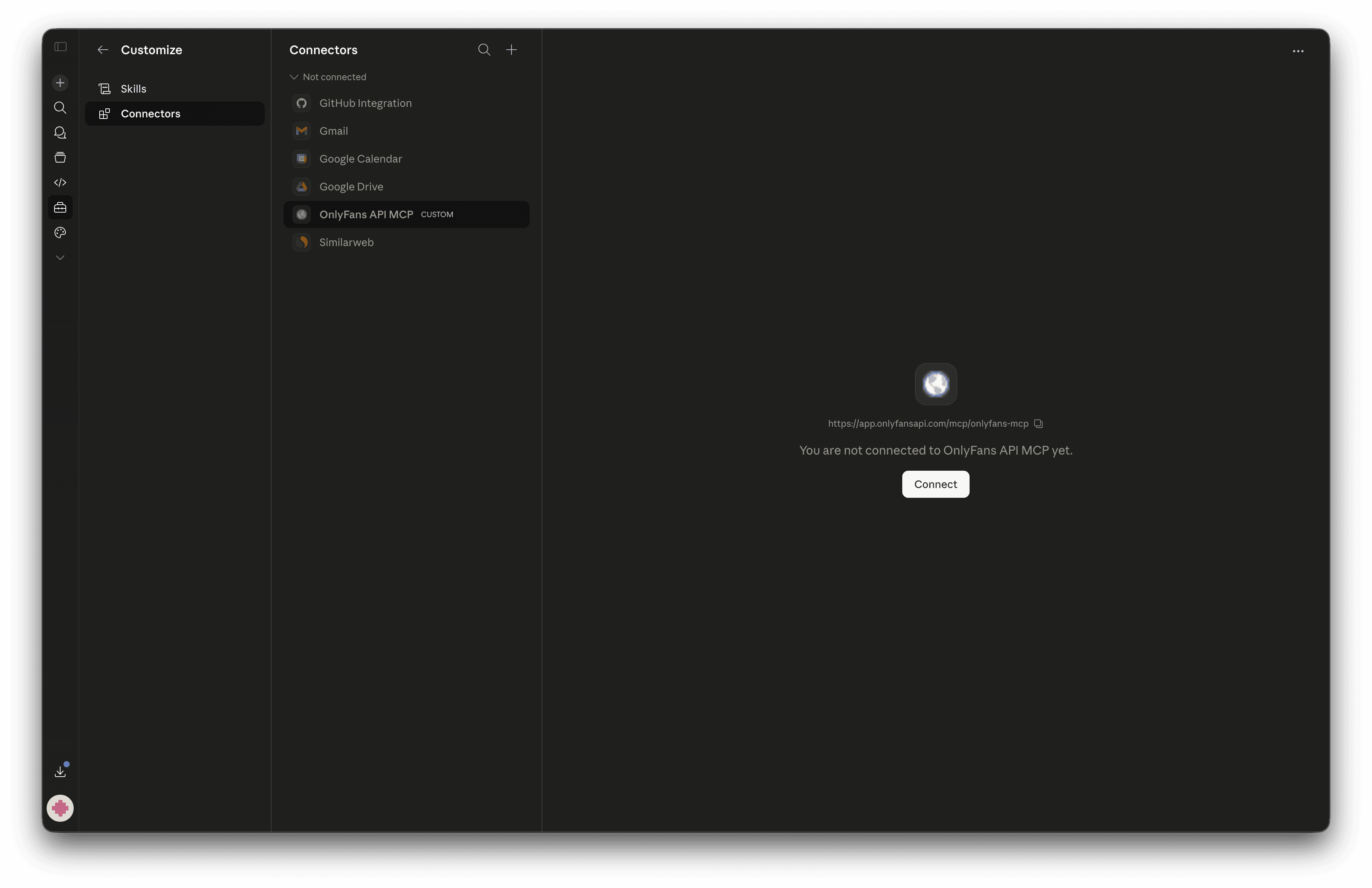
Sign in to app.onlyfansapi.com in a separate tab first. If you're signed out when you click Connect, Claude sends you to the sign-in page — but once you sign in, you land on the dashboard instead of the OAuth authorize screen, and the flow stalls. Sign in first, then come back to Claude and click Connect.
4. Authorize Claude on OnlyFans API
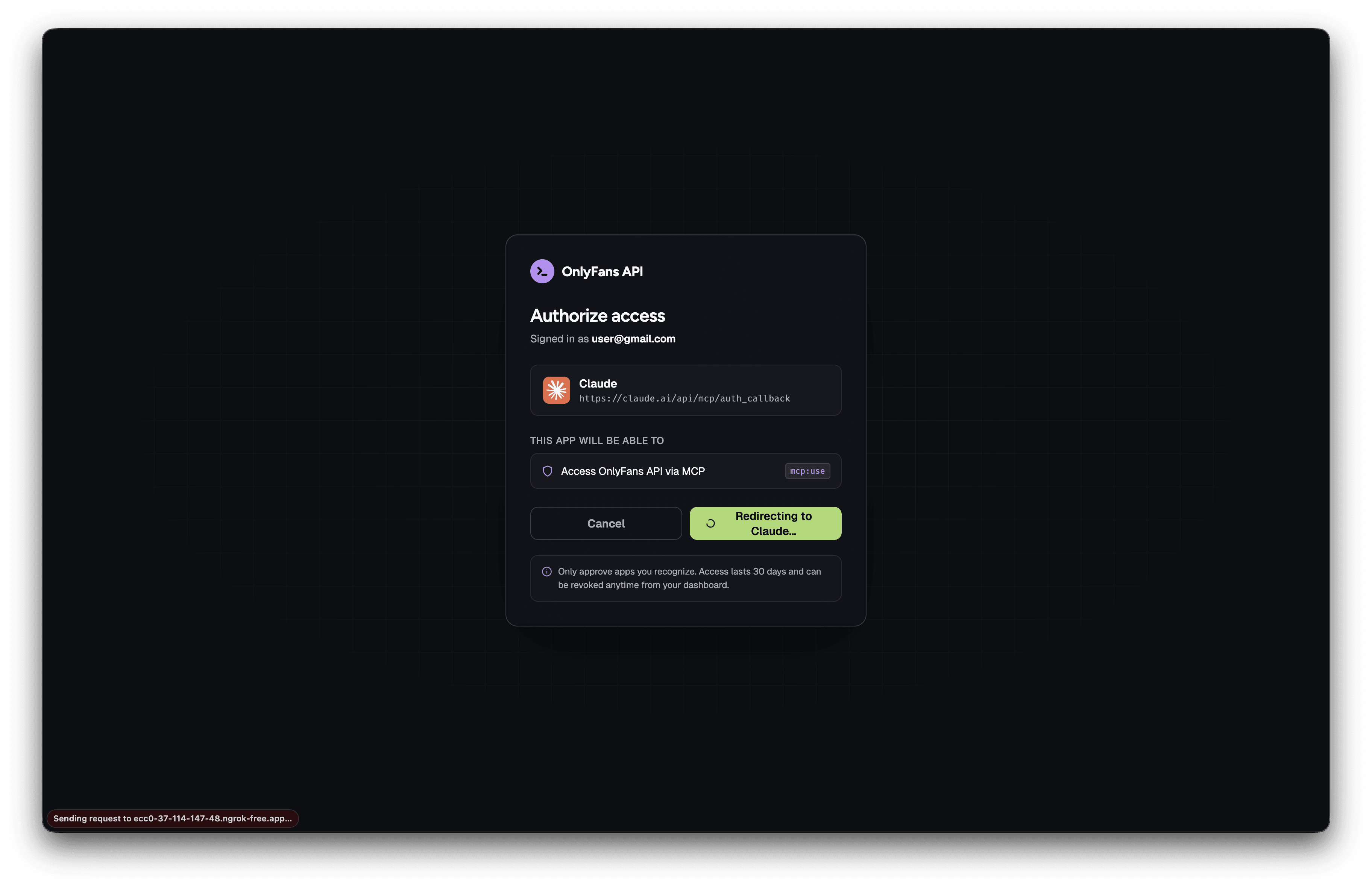
Claude redirects you to app.onlyfansapi.com. Click Authorize.
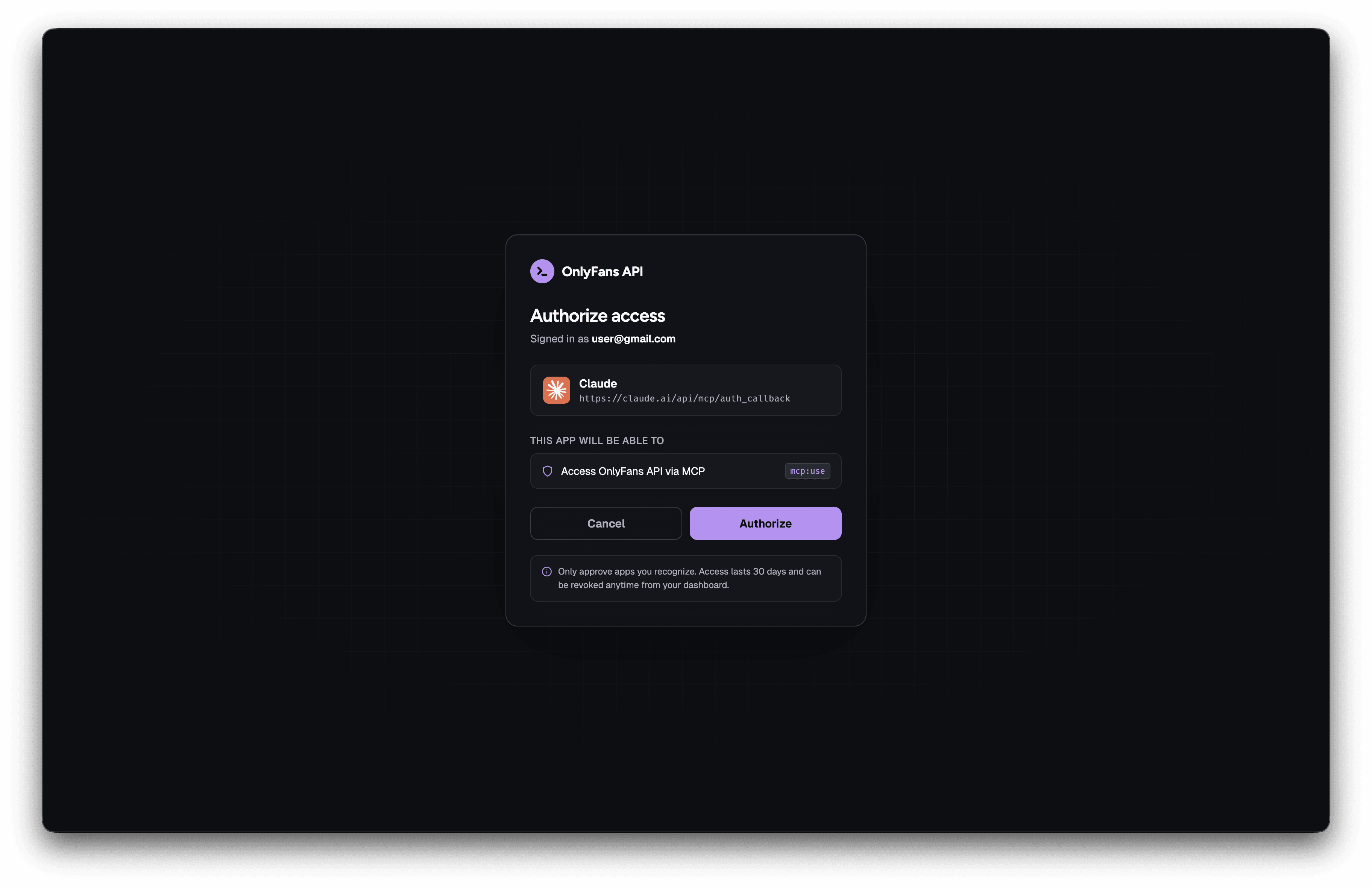
The button changes to Redirecting to Claude… and sends you back automatically.
5. Connector shows "Connected"
Back in Claude, you see a Connected to OnlyFans MCP toast and the connector's tool permissions list (all 350+ tools, organized by Read-only / Write / Destructive).
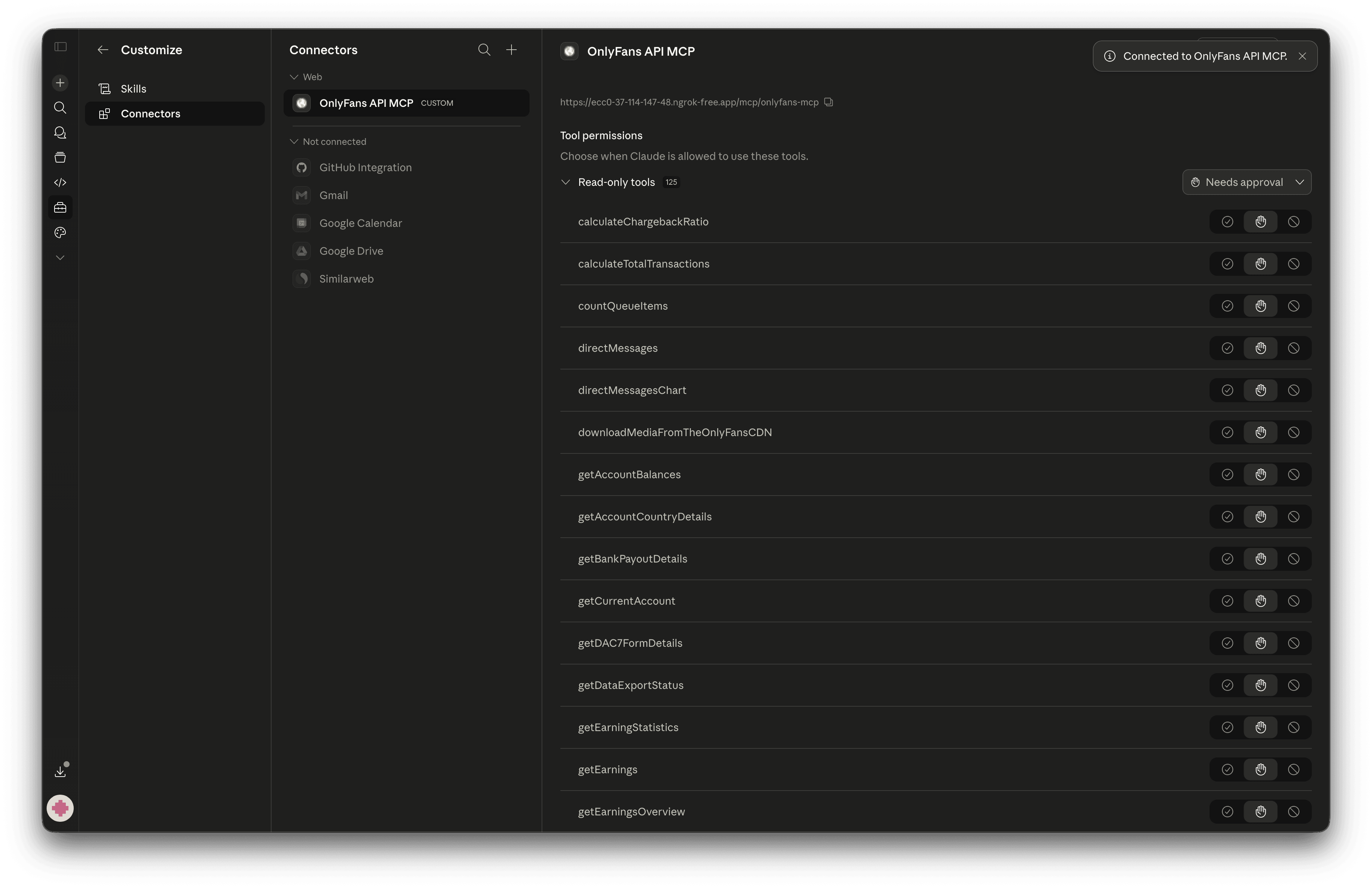
Tool permissions default to Needs approval — Claude asks before each tool call. You can switch a tool (or the whole group) to Always allow here, or do it inline on first use.
6. Enable the connector in a chat
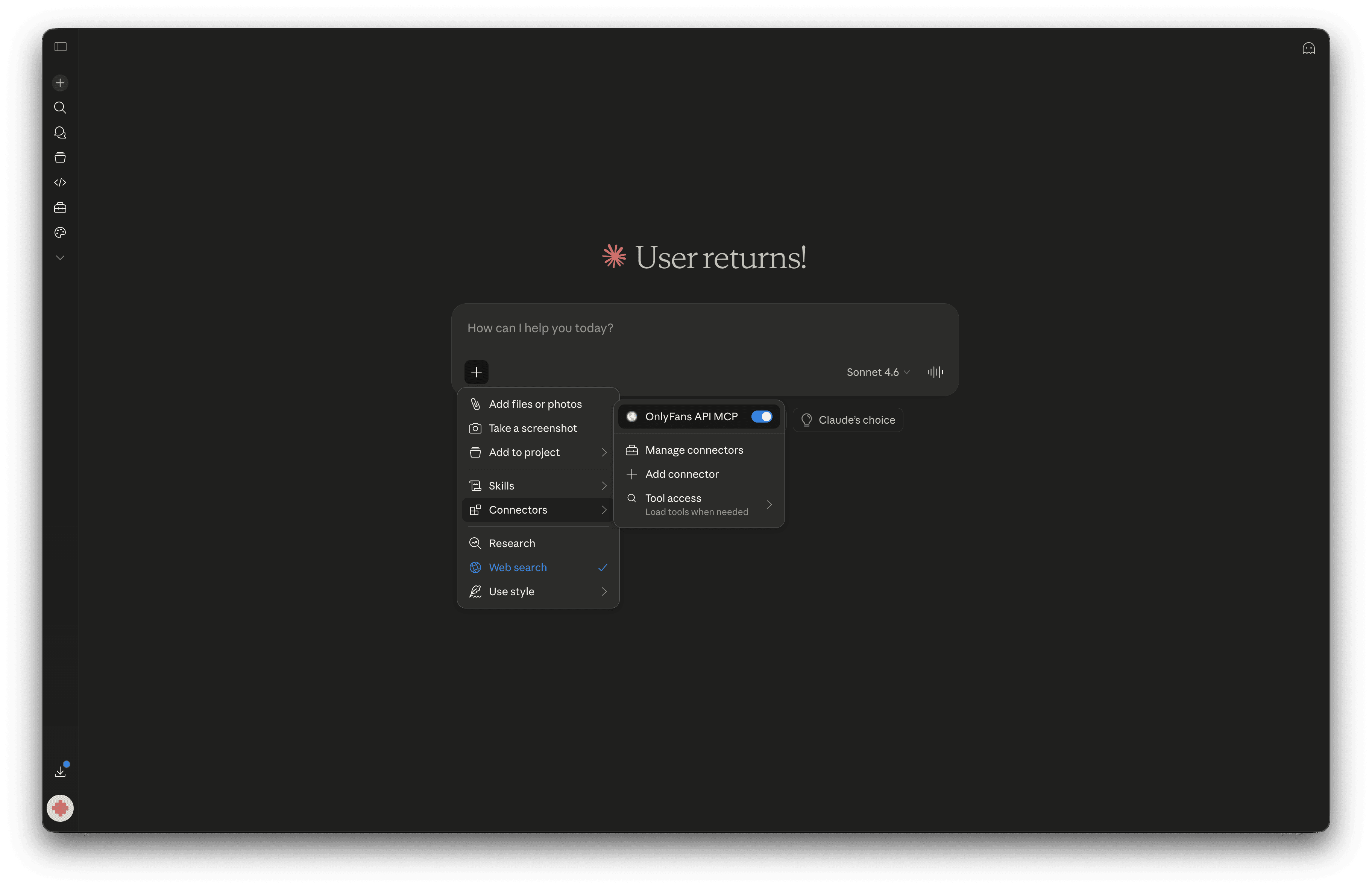
Open a new chat. Click the + button in the composer → Connectors → toggle OnlyFans MCP on.
7. Prompt Claude — approve the first tool call
Ask Claude to do something. On the first tool call, Claude shows a "Claude wants to use <tool> from OnlyFans MCP" prompt. Click Always allow (or Deny).
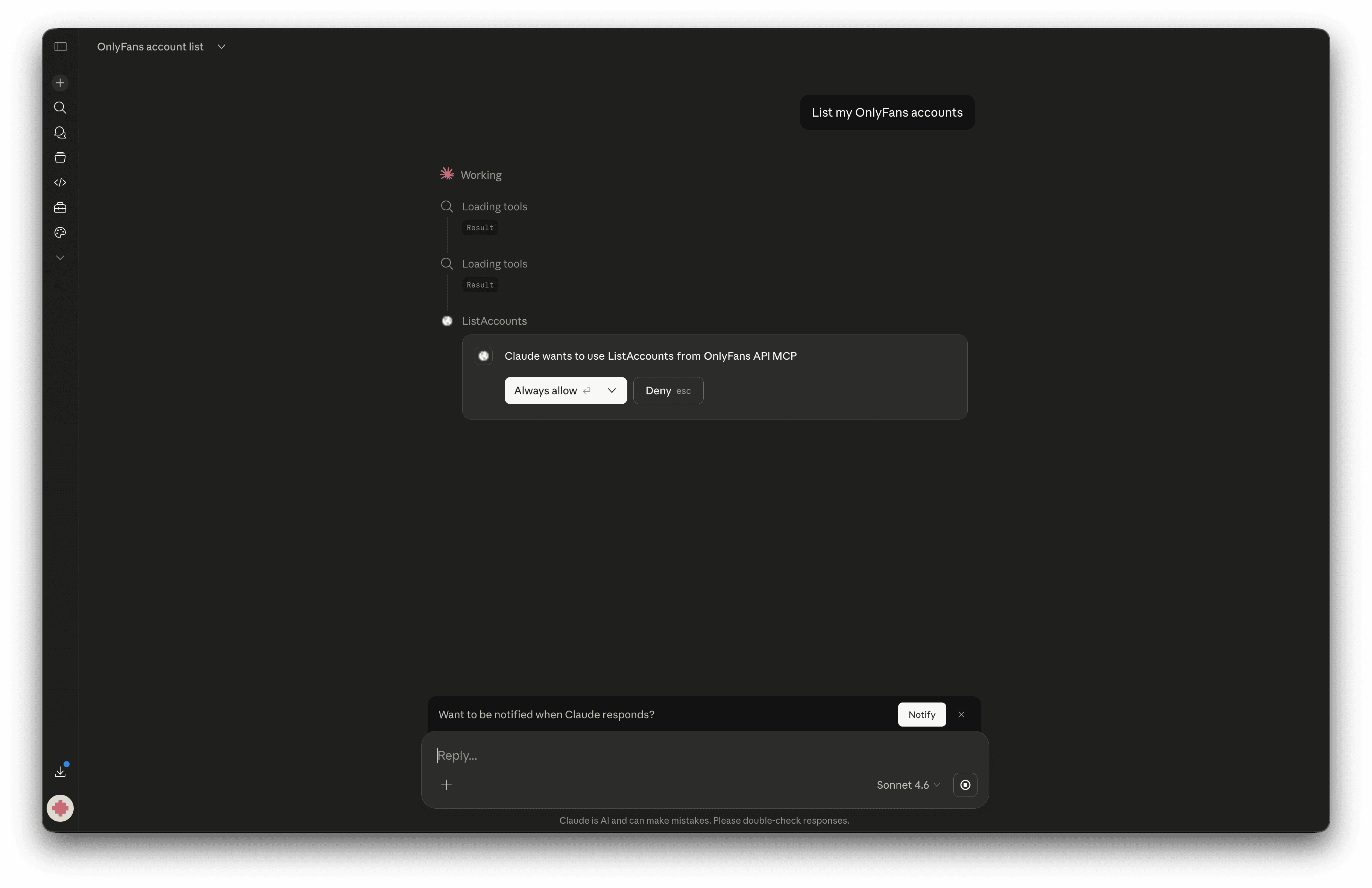
Done. Claude can now drive your OnlyFans accounts through the API.
Example use cases
Drop these prompts into a Claude chat with the OnlyFans MCP connector enabled:
Reporting & analytics
- "Summarize today's PPV revenue per creator."
- "List my top 20 spenders this week with their last message timestamp."
- "Get the earnings for
acct_XXXXXXXXXXXXXXXthis month, broken down by day." - "Pull last quarter's chargebacks and group them by reason."
- "Build a daily Slack-ready report: revenue, top fans, chat backlog."
Fan & chat ops
- "Find every chat with no reply in 24h and surface them."
- "Show my top 20 spending fans for
acct_XXXXXXXXXXXXXXXin the last 30 days." - "Tag whales spending over $500 with the
viplabel." - "Identify whales who haven't messaged in 14 days — draft a re-engagement DM."
Mass messaging & monetization
- "Draft a renewal DM for fans churning in the next 7 days. Don't auto-send."
- "Mass-message expired subs with a 50% reactivation offer."
- "Rewrite my welcome message and A/B test it."
Most tools are account-scoped and need the account id in the form acct_XXXXXXXXXXXXXXX. If you omit it, Claude will ask — or it will call list_accounts first to find one.
Troubleshooting
Plan notes
Claude Free supports 1 custom connector total. If you hit the limit, upgrade to Pro/Max/Team/Enterprise or remove an unused connector first.
See also
- OnlyFans MCP overview — what MCP is, how it works, and supported clients
- ChatGPT MCP install guide
- Manus MCP install guide
- Develop with AI Agents —
llms.txt, OpenAPI schema,onlyfansapi-skill - API Reference — every endpoint exposed as an MCP tool
- Connect OnlyFans account — prerequisite for account-scoped tool calls