Connect and reconnect an account
Try the authentication flow yourself, or watch the code and website animate together.
Connect a new OnlyFans account with startOnlyFansAuthentication. When its session expires, reconnect that same account with updateOnlyFansCredentials.
Reconnect preview
The reconnect method is awaiting release in the auth package and the backend. This tutorial shows that implementation. Use it after both releases are available.
Try the walkthrough
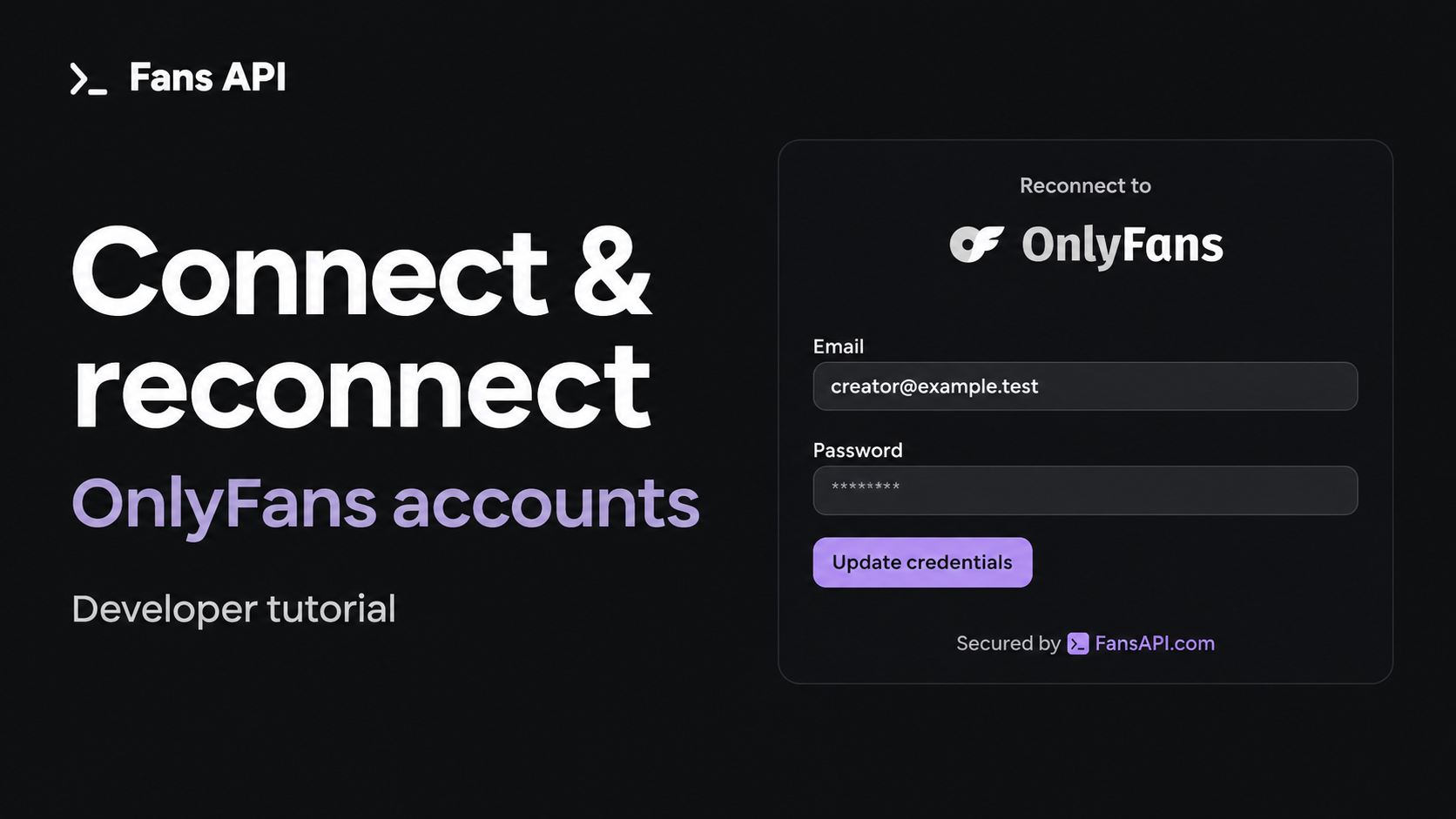
Choose Watch with narration to follow the code and website together. The narration drives the animation clock, so seeking and pausing keep the voice and screen together. The cursor opens the popup, enters demo credentials, completes verification, and reconnects after the session expires. Use the chapter buttons or progress bar to jump to a step. Expand gives the code more room.
Choose Try it yourself to control the demo. Click Connect account inside the app, use the demo details, and complete verification with 123456. Then click Expire session and Reconnect. Try a wrong password to see the retry behavior.
This is a local simulation. It makes no API requests and never sends the values you enter. The account ID stays acct_demo_42 through the reconnect flow. The steps follow the hosted popup's behavior, but the screen is an illustration, not a live OnlyFans login.
The video opens with a short introduction, then follows the code and popup together.
The animated MP4 is also available to download. It runs for about two and a half minutes with narration, background music, and timed captions. The interactive controls work on this page, not inside the MP4. You can also download the captions and video thumbnail.
| Time | What you will see |
|---|---|
| 0:00 | Let customers connect accounts to your CRM, chatbot, or tool |
| 0:19 | Create a token on your server |
| 0:31 | Open the popup and enter credentials |
| 0:39 | Verification |
| 0:45 | Save the connected account |
| 0:52 | Subscribe to account webhooks |
| 1:01 | Verify, persist, acknowledge, and refresh current status |
| 1:11 | A password change during an agency switch can expire the session |
| 1:19 | Receive accounts.session_expired and check the existing account |
| 1:30 | Create a token for the existing account |
| 1:43 | Enter replacement credentials |
| 1:56 | A wrong password and a retry |
| 2:07 | The same account reconnects |
| 2:12 | Closing, token expiry, and saved-credential retries |
Keep the API key on your server
Your server creates a client session. Your browser receives its token and opens the popup. The creator enters their OnlyFans credentials inside that popup.
Install the auth package in your app:
npm install @onlyfansapi/authThe examples below use Next.js route handlers. Set OFAPI_API_KEY in your server environment. Do not prefix it with NEXT_PUBLIC_.
Use this helper for both routes:
import 'server-only';

export async function createClientSession(
  body: { display_name: string } | { account_id: string },
) {
  const key = process.env.OFAPI_API_KEY;
  if (!key) throw new Error('OFAPI_API_KEY is missing');

  const response = await fetch('https://api.fansapi.com/api/client-sessions', {
    method: 'POST',
    headers: {
      Authorization: `Bearer ${key}`,
      'Content-Type': 'application/json',
    },
    body: JSON.stringify(body),
    cache: 'no-store',
  });

  if (!response.ok) {
    throw new Error(`Could not create a client session: ${response.status}`);
  }

  return response.json() as Promise<{ data: { token: string } }>;
}
requireUser and findAccountForUser in the route examples represent your app's existing sign-in and account-ownership checks. Replace those imports with your own functions. requireUser must reject unsigned users. findAccountForUser must return only an account that this user may manage.
Connect a new account
Create a token without account_id:
import { createClientSession } from '@/lib/onlyfans';
import { requireUser } from '@/lib/account-access';

export async function POST() {
  await requireUser();
  const { data } = await createClientSession({ display_name: 'Jamie' });

  return Response.json(
    { token: data.token },
    { headers: { 'Cache-Control': 'no-store' } },
  );
}
Call the route from your Connect button, then open the popup:
import { startOnlyFansAuthentication } from '@onlyfansapi/auth';

async function connectAccount() {
  const response = await fetch('/api/onlyfans/connect-session', {
    method: 'POST',
  });
  if (!response.ok) throw new Error('Could not open the sign-in popup');
  const { token } = await response.json();

  startOnlyFansAuthentication(token, {
    onSuccess: ({ accountId, username }) => {
      // Save accountId against this creator in your app.
      // Your save endpoint must verify ownership before storing it.
      saveConnection({ accountId, username });
    },
    onError: ({ message }) => setError(message),
  });
}
Here saveConnection calls your app's authenticated save endpoint, and setError displays a message in your component. See the Next.js and Prisma example for account storage and the rest of the page.
The popup starts with empty email and password fields. It shows progress after the creator submits them. It asks for verification when OnlyFans requires it. On success, the callback returns an accountId. Keep it with the creator's record.
Listen for account updates
The popup's onSuccess callback updates the browser that opened it. Your backend also needs incoming webhooks so it can track changes after that browser closes.
Add a webhook endpoint for your server before onboarding customers, so you receive their first connection event. Enable a signing secret and subscribe to these events:
| Event | What your app should do |
|---|---|
accounts.connected | Refresh the new account and associate it with the correct customer. |
accounts.reconnected | Refresh the existing account and clear its reconnect prompt when it is authenticated. |
accounts.session_expired | Match account_id to the customer, refresh current status, and offer Reconnect if the existing account still needs a new login. |
The expiry flow starts with accounts.session_expired. You do not need to wait for accounts.authentication_failed; that separate event reports a failed authentication attempt.
Match the top-level account_id to your saved account record. If you pass client_reference_id when creating the first client session, accounts.connected also includes it in payload.client_reference_id to help you associate the new connection with the customer.
Verify the Signature header against the raw request body using your signing secret. Persist the event or queue work durably, then return a 2xx response promptly. Process the account refresh in your worker.
const rawBody = await request.text();
verifySignature(rawBody, request.headers.get('Signature'));

const { account_id } = JSON.parse(rawBody);
await queueAccountRefresh(account_id);
return new Response(null, { status: 204 });
This is an outline, not a complete route. verifySignature must reject missing or invalid HMAC SHA256 signatures with a constant-time comparison. queueAccountRefresh represents your own durable queue and must only accept account IDs belonging to the integration that signed the request.
Deliveries can repeat or arrive out of order. Make processing idempotent and refresh current API state instead of blindly applying the last event received. Account lifecycle events may omit X-OFAPI-Idempotency-Key, so do not require that header or treat its absence as a unique event. Batch or coalesce repeated refreshes for the same account. List Accounts returns is_authenticated and authentication_progress; your worker can reconcile the relevant records from that response.
accounts.disconnected is different: it means an account was deliberately removed. Its old account ID cannot be used for credential updates. This walkthrough keeps the existing account and reconnects an expired session.
Reconnect after the session expires
A creator may change their password when switching agencies. That is a normal security step, and it can expire the session your app was using. Keep the existing account in your database. When an accounts.session_expired webhook arrives, refresh that account's current status. If it still needs a new login, show a Reconnect button for that record. If it has already recovered or authentication is still in progress, reflect that state instead.
Create a fresh client session with the saved account_id. Do not include display_name, proxy_country, scopes, or other new-connection settings.
import { createClientSession } from '@/lib/onlyfans';
import { requireUser, findAccountForUser } from '@/lib/account-access';

export async function POST(
  _request: Request,
  context: { params: Promise<{ id: string }> },
) {
  const user = await requireUser();
  const { id } = await context.params;
  const account = await findAccountForUser(user.id, id);
  if (!account) return new Response('Not found', { status: 404 });

  const { data } = await createClientSession({
    account_id: account.accountId,
  });

  return Response.json(
    { token: data.token },
    { headers: { 'Cache-Control': 'no-store' } },
  );
}
Use the new method in your Reconnect button handler. id is your app's saved account record ID. Your server resolves it to the Fans API accountId.
import { updateOnlyFansCredentials } from '@onlyfansapi/auth';

async function reconnectAccount(id: string) {
  const response = await fetch(
    `/api/onlyfans/accounts/${encodeURIComponent(id)}/reconnect-session`,
    { method: 'POST' },
  );
  if (!response.ok) throw new Error('Could not open the reconnect popup');
  const { token } = await response.json();

  updateOnlyFansCredentials(token, {
    onSuccess: ({ accountId }) => {
      // Refresh this account. Do not insert a second connection.
      refreshAccount(accountId);
    },
    onError: ({ message }) => setError(message),
  });
}
refreshAccount reloads that account from your backend. Handle rejected button-handler promises in your component's error state as well as errors from the popup callback.
The popup prefills the saved email. The creator can keep it or edit it. The password field starts empty. The credentials must belong to the same OnlyFans profile, even if the creator changed their login email.
After success, the callback returns the same accountId. The account keeps its permissions, display name, and proxy settings.
What happens when something goes wrong?
| Situation | Behavior |
|---|---|
| The user closes before submitting | The connection does not change. |
| The user submits credentials | The new credentials replace the saved values immediately. Account access pauses until login succeeds. |
| The password is wrong | The new credentials stay saved. Try again keeps the email and clears the password field. It does not delete the account. |
| The user closes after submitting | Login continues. Reopen the same token to resume progress or verification. |
| The same form submits twice | Both requests follow the same attempt. |
| Another session tries to log in at the same time | It shows "Authentication already in progress." |
| The update token is 30 minutes old | Request a fresh token for another submission or retry. An already-started attempt can finish within its normal deadline. |
| An update succeeds | That token cannot start another update. Request a new token next time. |
| The account reaches three attempts in a minute | A new attempt receives HTTP 429 with Retry-After: 60. |
The button handlers above request a fresh token each time. To let someone reopen a dismissed popup while login is still running, keep its token in component memory and pass it to the same method again. Clear it after success or expiry. Do not share a token between users or put it in public environment configuration.
Retrying saved credentials is a different operation
POST /authenticate/{account_id}/reauthenticate retries the credentials that Fans API already has. It does not open a popup or collect replacements.
Use updateOnlyFansCredentials when the creator needs to enter their login details again. Use Update Authentication Credentials if your server already has the replacement credentials.
Video transcript
The introduction explains how a CRM, AI chatbot, or another tool can let customers connect their own OnlyFans accounts. The animation then starts on an empty account list. The server creates a client session with a display name. The browser opens the sign-in popup. Jamie enters login details and completes verification. The app saves the returned account ID and displays the connected account.
After connection, the walkthrough shows how the backend receives and verifies account webhooks, acknowledges them, and refreshes current account status. Later, Jamie changes their password while switching agencies. That can expire the session, and the backend receives accounts.session_expired. It checks the current account status and offers Reconnect for Jamie if a new login is still needed. Its backend checks who owns that record and creates a new token with the saved account ID. The Reconnect button opens the same popup with Jamie's email already filled in. In the interactive demo, a wrong password produces an error. Try again returns to the form without deleting the account. After a successful login, the app refreshes the original row. Its account ID has not changed.
The animation ends with the two method calls. The text explains that update tokens accept submissions for 30 minutes, closing does not cancel a running login, and the popup limits new attempts to three per account per minute.